
Forecasting & Routing
Plan deliveries smarter. Keep drivers on the right route.
Know which tanks need fuel, when they need it, and how much fuel they need. Forecasting helps you plan upcoming deliveries, while Routing turns those deliveries into an efficient route for your drivers. View scheduled stops on a map, organize them in the best order, and send the route directly to the driver's phone—so drivers know exactly where to go and what to deliver.
Scheduled deliveries, by driver
Forecasting
Every tank, ranked by when it runs out
The Upcoming Deliveries list does the math for every tank on your books. Sort by runout date, and the tanks closest to empty rise to the top. Past-due tanks show in red.
Filter the list by forecast due date, days before runout, runout date, expected gallons, zone, fuel type, tank size, forecast method, or delivery type. Then pick the stops you want and click Map It.
How the forecast works
The forecast is math you can check
Hover any column header in the product and it shows the formula behind the number.
- UPD
- Gallons used per day: delivered gallons ÷ days between deliveries (DBD).
- Runout
- Runout date: (tank size ÷ UPD) + last delivery date.
- Days left
- Days before runout: the days between today and the runout date.
Per-tank delivery rules
Set the delivery rule once, per tank
- Automatic or Will Call: mark how each tank gets fuel.
- Days between deliveries, by season: up to four seasons per tank. For example, every 31 days from January to March and every 25 days from June to August.
- Scheduled delivery: repeat weekly, monthly, yearly, or on set calendar dates. Add another repeat when a customer needs a second pattern.
- Pause/Stop: check one box to stop a recurring schedule without deleting it. Uncheck it to pick back up.
Routing
Map It: draw the route with your mouse
Every selected delivery drops onto the map as a pin.
- 1
Draw a box or a shape
Drag a rectangle, or click out a polygon, around the pins you want on one truck.
- 2
Clean up the batch
The pop-up lists every stop you caught. Remove any you grabbed by mistake.
- 3
Pick the day and zone
Choose the delivery date. Put the stops in an existing zone, name a new one, or leave it blank.
- 4
Assign the driver
Pick the driver and click schedule. The stops you did not catch stay on the map for the next truck.
Load check
It checks the load against the truck
When the gallons you assign are more than the truck holds, TankSpotter says so before you commit. It shows the truck capacity, the gallons already scheduled that day, and the gallons you are adding. You can still continue.
No truck set up yet? Add one on the spot: truck number, truck type, fuel capacity, driver, and office location.
Scheduled deliveries
Plan and Manage Every Delivery Route in One Place
See all scheduled deliveries on one map and quickly organize each driver's stops.
- Optimize Route – Arrange stops in the most efficient order.
- Reverse Route – Start with the farthest stop and work back toward the office.
- Edit Route – Move stops directly on the map and update the route.
- Reassign Stops – Easily move deliveries between drivers or remove a stop from a route.
The driver view: how the day is going
Switch to Driver View for one row per driver: assigned, completed, and incomplete deliveries; expected gallons against gallons delivered; truck capacity left; and miles driven.
Use Update Route/Zone to group deliveries into a zone you can pull up again.
Driver app
On the driver's phone, in the same order
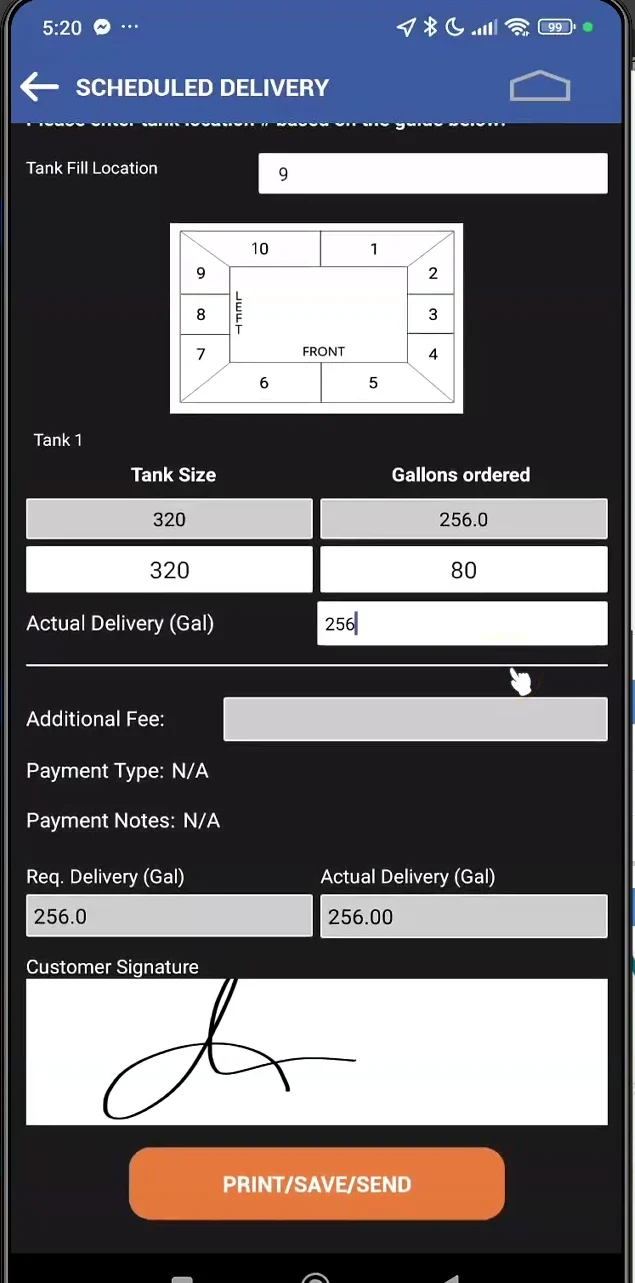
The driver's app lists the stops in the same order as the office map. At each tank the driver enters the actual gallons, takes an optional customer signature, and taps Print/Save/Send. With a paired Zebra printer, the ticket prints right at the truck.
Back in the office, the stop shows Completed when the page refreshes.
Walkthrough
Watch a walkthrough
App Screen Recording — How forecasting and routing works, start to finish (11 min)
App Screen Recording — Map It: pick deliveries by drawing on the map (4 min)
App Screen Recording — Reassign or unassign a scheduled delivery (5 min)
Want to see it on your own tanks?
Book a live demo and we will walk through forecasting, Map It, and the driver app on a screen share.