
Delivery Desk
LCR:iQ Register Connection
Connect. Capture. Deliver. Connect the TankSpotter Android app directly to your Liquid Controls LCR:iQ register using Wi-Fi or Bluetooth. Fuel readings are automatically captured and added to the Fuel Delivery form, reducing manual data entry and helping drivers complete deliveries faster and more accurately.
Register reading, filled into the form
Connect. Capture. Deliver.
Key Benefits
- Automatic Fuel Readings – Capture gallons directly from the register.
- Less Manual Entry – Reduce typing and eliminate unnecessary data entry.
- Faster Deliveries – Spend less time entering information and more time delivering.
- Flexible Input – Manual entry remains available whenever needed.
Dispatch to delivered
From the office to the register and back
One delivery, start to finish. The office and the truck see the same job.
- 1
The office sends the job
The office schedules the delivery to a driver on the web dashboard. The job shows up in the driver's app.
- 2
The driver opens the Fuel Delivery form
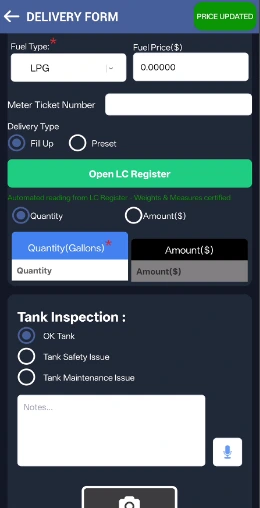
At the tank, the driver opens the Fuel Delivery form and taps Open LC Register.
- 3
The register measures the delivery
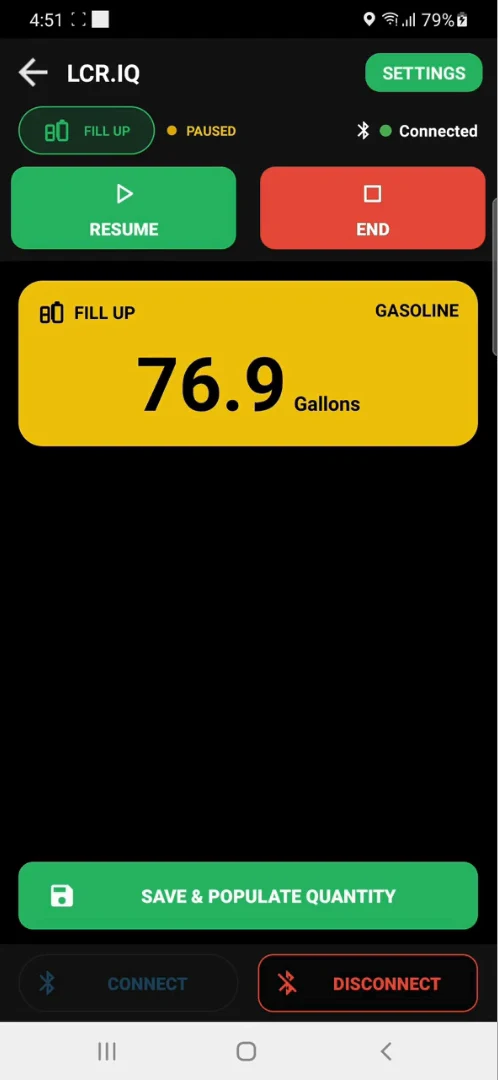
The app's LCR.IQ screen shows the register's gallons as they pump, with Start, Pause, Resume, and End.
- 4
Save & Populate Quantity
One tap drops the register's gallons into the form's Quantity field.
- 5
Finish and send
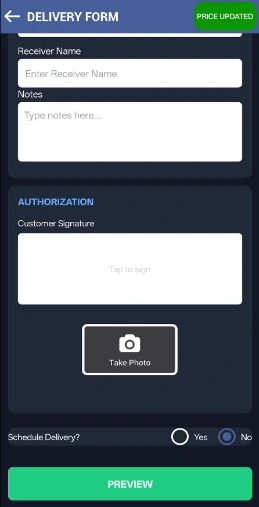
The driver adds the tank inspection, photos, receiver name, and customer signature, then previews and submits. The office dashboard moves the job from Scheduled to Delivered.
Driver app
The register, inside the driver app
• Fill Up or Preset: pick the delivery type on the form before you open the register. • Start, Pause, Resume, End: run the delivery from the app's LCR.IQ screen. • Connected: the screen shows when the app is talking to the register. Connect and Disconnect sit at the bottom. • Manual entry: type the gallons yourself whenever you need to.
Watch it work
A real delivery, register to form
Connected over Wi-Fi (2.5 min, no sound)
Connected over Bluetooth (2.5 min, no sound)
Setup
Connect over Wi-Fi
You need four things from the LCR:iQ: the Wi-Fi name (SSID), the Wi-Fi password, the IP address, and the port number.
- On the LCR:iQ, open the Main Menu.
- Select I/O Setup.
- Go to page 2 of the I/O Setup screen.
- The Wi-Fi name, password, and IP address are listed there. Ask your TankSpotter contact for the port number.
- In the TankSpotter app, open the LCR.IQ screen, tap Settings, and enter them.
While the phone is on the register's Wi-Fi, it can't join another Wi-Fi network. Use the phone's 4G/5G data for internet until you're done, then switch back to your regular Wi-Fi.
Setup
Connect over Bluetooth
- Open the Android phone's Bluetooth settings.
- Pair the phone with the LCR:iQ.
- Open the TankSpotter app.
- The paired LCR:iQ shows up in the app's paired-device list.
- Select it to connect.
Before you roll it out
What to Know Before You Get Started
The LCR:iQ connection makes fuel delivery faster and easier while keeping the familiar TankSpotter workflow.
- Android Compatible – LCR:iQ register connectivity is currently available on the TankSpotter Android app. iOS is not currently supported due to LCR:iQ device compatibility. Manual fuel entry remains available on all supported devices.
- Less Manual Entry – Fuel readings are captured directly from the register, reducing the amount of information drivers need to enter at the truck.
- Same Familiar Workflow – Everything else stays the same, including tank inspection, photos, receiver name, signature, and delivery preview.
Want to see it with your register?
Book a live demo and we will walk through the register connection and the Fuel Delivery form on a screen share.